
Yes, see this Network Requirements and Settings document.
The reasons your device may be having issues communicating to the cloud could be;
– There is a weak signal between the device and the router
– The battery is low on your device.
– The router’s SSID or Password may have changed
– The router has been disconnected or has been turned off
– There is a signal blocking obstacle like metal or concrete walls
These reasons should be considered when initially setting up your device to have the most success when communicating with the Cloud.
EL-WIFI – When the sensor is displaying the main reading screen on the LCD, press the button on the front three times. The MAX, MIN and Signal Strength screens will be quickly displayed. The device will try to transmit its latest data immediately, regardless of the transmission rate setting.
EL-IOT – You must hold the main button on the device for 1-8 Seconds. This acknowledges an alarm, creates an audit event in the record, and forces data synchronization with the Cloud.
EL-WEM – As the EL-WEM has a fast update rate by default, there is no way to force transmission with the cloud.
IT IS RECOMMENDED THAT YOU ARCHIVE THE DEVICE ON YOUR EASYLOG CLOUD DEVICES PAGE BEFORE UNDERTAKING A FACTORY RESET.
EL-WIFI – The device can be reset by holding the button for 10 seconds. Release the button when RST appears on the screen. The device will retain all settings but will lose any data that had not been transferred to the EasyLog Cloud. It will continue to be connected to the account it was set up with and will simply start a new recording session.
If necessary, a full factory reset can also be performed by holding the button for 20 seconds until FArS appears on the screen. Doing this will return the device to the factory state, deleting all settings and clearing any remaining data. The device will no longer be connected to any network or EasyLog Cloud account.
EL-IOT – To reset the device, you must remove the battery cover with a screwdriver. Once removed, there is a reset button that can be pressed using a pin. Hold this button for a few seconds until the device beeps.
EL-WEM – To soft reset the device, there is a reset button on the bottom of the base. Press the button and release after 1 second.
To factory reset the device, hold the same reset button for 5 seconds.
Open the EasyLog Cloud and go to the graph view of the sensor you wish to view the data for. Now select the “Sessions” button and select the session that has the data range you wish to see. The reason for new sessions is recorded, often this is due to time zone changes such as Daylight Savings Time. This way data integrity is maintained.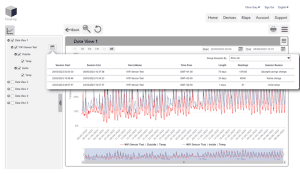
You can perform the following steps to help with this issue:
Basic Checks:
1) Check that the password being entered is correct.
2) Make sure that the SSID name does not contain spaces or other special characters.
3) Check that your network has an internet connection.
4) Check that the device is in range of the router.
5) 2.4GHz network supporting 802.11b, g or n is required. 5GHz networks are not supported.
Advanced Network Checks:
6) TCP Port 14354 is open for outbound traffic throughout your network and firewall.
7) Ensure MAC filtering is not switched on, or if it is switched on the device’s MAC address is included in the list of known devices.
8) Check that the DHCP service is running. This allows the device to be allocated an IP Address. Normally, the DHCP service runs in either your router or on a network server. Make sure that the configured DHCP IP address range allows the addition of new devices, if not extend the range.
9) If your wireless network uses WPA Enterprise authentication, make sure that the correct authentication type is selected during set-up from the drop-down box. Only the types listed are supported.
There are several factors which can significantly affect the battery life of the device including; Sync Schedule, Wi-Fi encryption method, Wi-Fi encryption key rotation frequency (determined by the Access Point or router), signal strength between access point or router and device, presence volume and type of Wi-Fi traffic from other devices, sample rate, and operating temperature. In our tests, we regularly achieve battery life in excess of six months with a transmission rate of one hour or more at ambient temperatures. The device will not take readings when there is no power, but all readings taken prior to the loss of power will be synchronized. Once recharged, the device will reconnect to the EasyLog Cloud, start a new recording session, and continue recording.
EL-WIFI – The battery in this device is rechargeable with the charge typically lasting 6 months. You can also power the device through a mains power supply.
EL-IOT – The batteries will typically last more than one year. The device takes 4 x AA 1.5V batteries.
EL-WEM – This device must be always powered by a mains power supply.
Select the device(s) and click on the menu button in the top right of the Devices Page, this menu contains the options for both archiving and deleting a device.
21CFR Part 11 is an American FDA regulation covering electronic data records for food and pharmaceutical manufacturers. 21CFR-compliant systems require our 21CFR designated hardware and our separate 21CFR cloud service.
Please visit the sign-up page where you can move the sliders to select the different features you require. You can sign up by card for automatic monthly billing or businesses can contact their local sales office for longer term subscriptions. https://easylogcloud.com/accounttype.aspx
If you are not receiving email notifications for cloud alerts this could be because;
– You may have unsubscribed from the mailing list. You can reset this on the cloud account page or by contacting us through the support page.
– Your company may have our email address blocked from their system as part of their policy. You may need to ask for permission to allow the emails to be received.
– You may not have emails notifications correctly set up. Please watch this tutorial on how to set up notifications – https://youtu.be/bSCzU2txTIo
If you’re having trouble accessing greyed-out tabs, please try reducing the zoom level on your browser. This can be done by using Ctrl – or Ctrl & mouse wheel. On mobile devices, these may be inaccessible due to screen size.